
Mastering WordPress Reading Settings: A Comprehensive Guide
Category: Web Development | Wordpress
When it comes to managing your WordPress site, understanding and customizing the Reading Settings is crucial for ensuring that your content is displayed exactly how you want it to be. Whether you’re running a blog, a business website, or an online portfolio, these settings help define how visitors interact with your content. In this blog post, we’ll explore the key aspects of WordPress Reading Settings and how to customize them to fit your needs.
Accessing Reading Settings
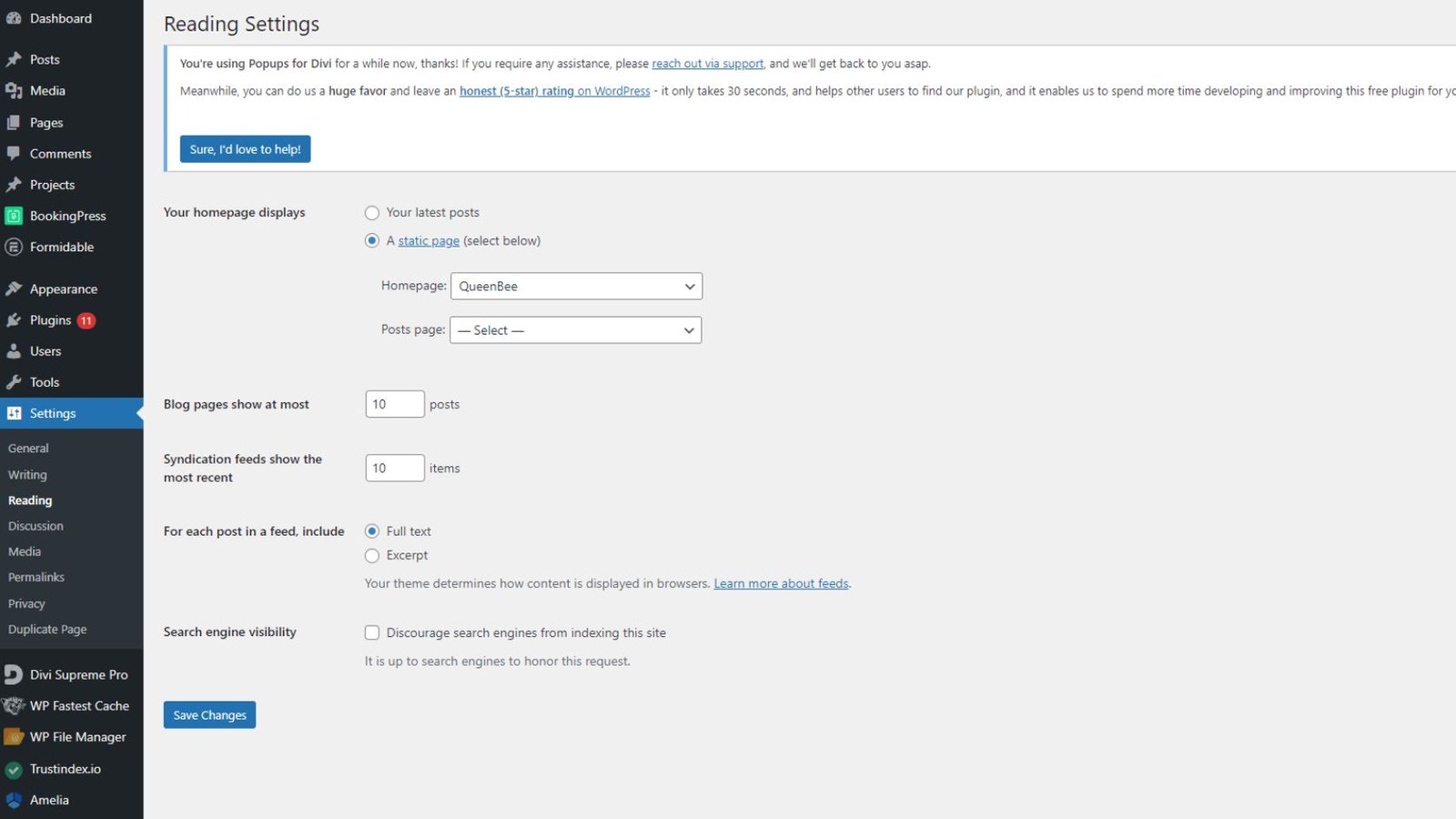
To access the Reading Settings, log in to your WordPress dashboard and navigate to Settings > Reading (See Image Below). Here, you’ll find a range of options that control the display of your posts and pages.
Setting a Static Front Page
One of the first options you’ll encounter is the choice between displaying your latest posts or a static page on the front page of your site.
- Your latest posts: This option is ideal for blogs and news sites where fresh content is frequently added. Visitors will see your most recent posts when they visit your homepage.
- A static page: This option allows you to select a specific page as your homepage and another page to serve as your posts page (where blog posts will be listed). This is a common choice for business websites, portfolios, and other sites where a consistent landing page is preferable.
To set a static front page:
- Select the “A static page” option.
- Use the dropdown menus to choose which pages to set as the Homepage and Posts page.
- Ensure you have created the pages you want to use before setting them here.
Blog Pages Show at Most
This setting determines how many posts are displayed per page on your blog or posts page. The default is typically 10 posts per page, but you can adjust this number to better fit your content strategy.
For example:
- If you want to highlight fewer, more significant posts, you might reduce this number.
- For a more dynamic blog with shorter posts, you might increase the number to keep visitors engaged longer.
Syndication Feeds Show the Most Recent
This setting controls the number of posts included in your site’s RSS feed. By default, this is also set to 10, but you can change it based on your needs. If you publish a lot of content and want to ensure your feed subscribers don’t miss out, you might increase this number. Conversely, if you want to reduce the size of your feed, you can lower it.
For Each Post in a Feed, Include
Here, you can choose whether to display the full text or just a summary in your RSS feed:
- Full text: Displays the entire post content in the feed. This can be beneficial for readers who use feed readers, allowing them to consume your content without visiting your site. However, it might reduce traffic to your actual website.
- Summary: Displays only a summary of your posts, encouraging readers to click through to your site to read the full content. This can increase site traffic and engagement.
Search Engine Visibility
The final setting in this section is a checkbox labeled Discourage search engines from indexing this site. This is a critical setting for site visibility:
- Checked: Tells search engines not to index your site, effectively hiding it from search results. This can be useful during site development or for private sites that you don’t want to be publicly visible.
- Unchecked: Allows search engines to index your site, making it visible in search results. This is essential for public-facing websites that rely on search engine traffic.
Make sure to leave this box unchecked if you want your site to be discoverable via search engines.
Conclusion:
Customizing your WordPress Reading Settings is a fundamental step in managing how your content is presented to visitors. By setting a static front page, controlling the number of posts displayed, managing your RSS feed settings, and understanding the impact of search engine visibility options, you can create a more tailored and effective website experience.
Remember, these settings can always be adjusted as your site evolves, so don’t hesitate to revisit and tweak them to better suit your goals. Happy customizing!
Contact us to get more information about it.
Search blogs
Other Blogs
Fixing Stripe API Errors in Forminator: How the Forminator Stripe App Solves Connection Issues
If your Stripe payments are failing or Forminator is showing API connection errors, the issue is usually caused by missing or invalid Stripe permissions. This happens when Stripe API keys are not properly linked or have been restricted by Stripe for security reasons....
How to Fully Secure Your WordPress Website Using Defender Pro
Securing a WordPress website requires more than just installing a security plugin—it depends on configuring the right features correctly. Defender Pro provides a comprehensive set of tools designed to protect your site from hackers, malware, and unauthorized access when used effectively.
How To Fix The Missing Divi Library Layouts Issue
Missing Divi Library layouts are often caused by permalink or rewrite rule conflicts, especially after site migrations, updates, plugin changes, or hosting switches. In most cases, the issue can be fixed quickly by simply re-saving your WordPress permalinks. This forces WordPress to regenerate its rewrite rules, which Divi relies on to load saved layouts correctly. Once refreshed, the Divi Library items usually reappear instantly in the Divi Builder without any data loss or configuration changes.
How to Fix WordPress Not Sending Emails Problem
One of the most frustrating issues for WordPress users is when the website suddenly stops sending emails. Whether it’s contact form messages, password reset links, or WooCommerce order notifications — these emails are essential for smooth communication and user trust....
10 Common WordPress Issues and How to Fix Them
WordPress is a powerful and flexible platform, but it can occasionally present technical challenges that disrupt your website’s performance or functionality. From plugin conflicts and slow loading speeds to security issues, broken links, and failed updates, these problems are common for many site owners. This guide highlights the most frequent WordPress issues and provides practical, easy-to-follow solutions to resolve them quickly. Whether you’re troubleshooting errors, improving performance, or strengthening security, understanding these fixes can help keep your WordPress site running smoothly and reliably.