
Steps to Build a Multilingual Website on WordPress
Category: Wordpress
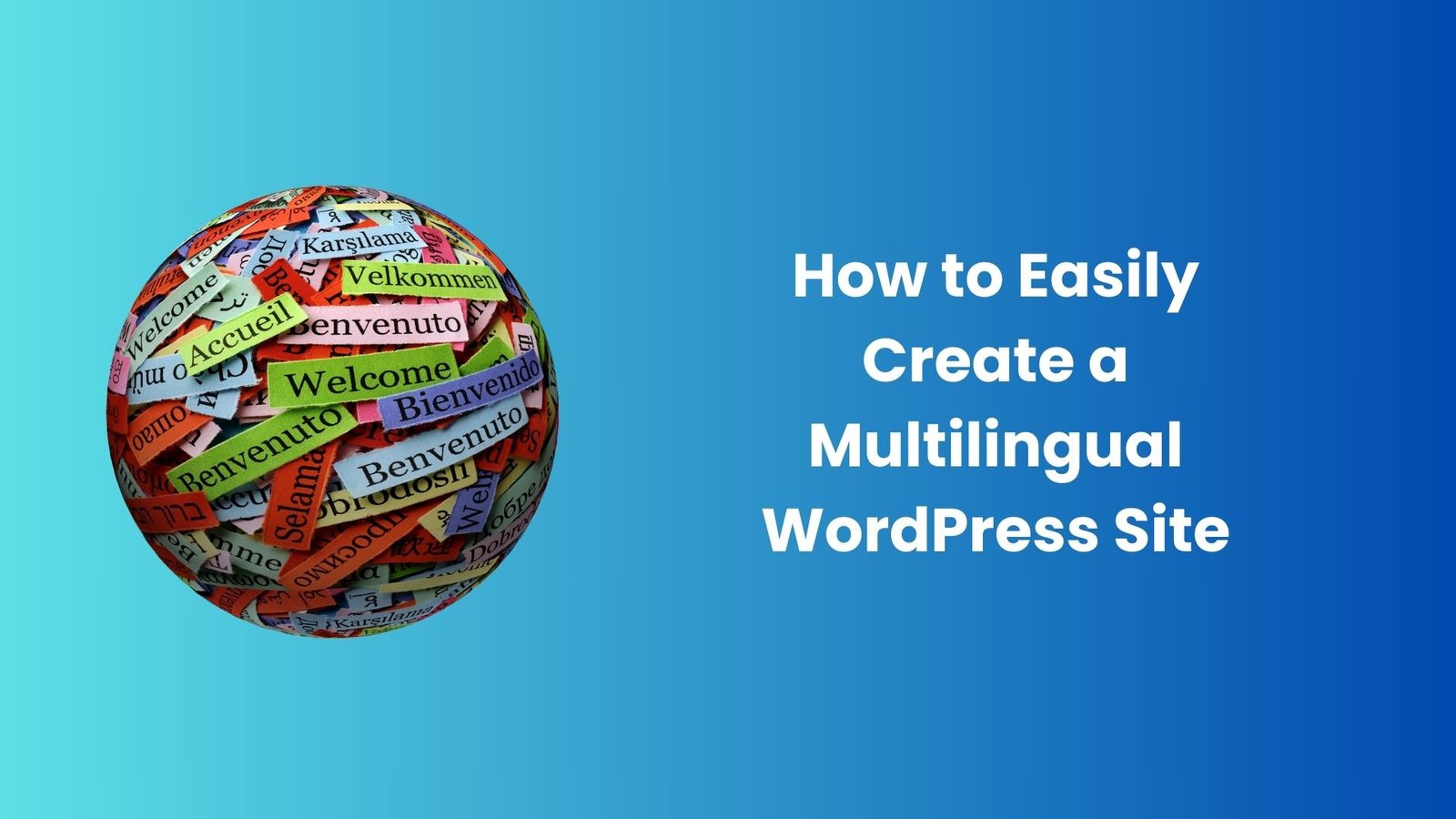
Step 1: Choose the Right Approach for Your Multilingual Site
Before diving into technical details, it’s important to decide how you want your website to function in multiple languages. There are generally two approaches to setting up a multilingual site:
- Subdirectories (example.com/es/): A separate folder for each language.
- Subdomains (es.example.com): A separate subdomain for each language.
Both approaches have their advantages and disadvantages. It depends on your website’s structure and the resources you have available. Subdirectories are easier to manage, while subdomains offer more flexibility, especially for larger websites.
Step 2: Install a Multilingual Plugin
WordPress does not natively support multiple languages, so you’ll need to install a plugin. Here are some of the best plugins to help you create a multilingual WordPress site:
- WPML (WordPress Multilingual Plugin):
- One of the most popular and feature-rich plugins for multilingual websites.
- Allows you to translate posts, pages, custom post types, taxonomies, menus, and more.
- It supports multiple languages and lets you set up language switchers for your site.
- It’s a premium plugin with a user-friendly interface.
- Polylang:
- A free and highly rated plugin that supports multiple languages.
- Allows you to create a bilingual or multilingual site by adding translations for posts, pages, categories, tags, etc.
- You can manually add translations or use third-party services for automatic translations
- TranslatePress:
- A visual translation plugin that allows you to translate your entire site from the front end.
- Supports manual and automatic translations and provides an intuitive interface for managing translations.
- Offers both free and premium versions.
Step 3: Set Up Your Multilingual Plugin
Once you’ve installed your preferred multilingual plugin, the next step is to configure it. Here’s how to do this with Polylang, for example:
- Install and Activate Polylang:
- Go to your WordPress Dashboard > Plugins > Add New.
- Search for “Polylang” and click “Install Now.”
- After installation, click “Activate.”
- Configure Languages:
- After activation, go to “Languages” in the WordPress dashboard menu.
- Click “Languages” to add the languages you want to support on your website.
- You can select from popular languages or add custom ones.
- Translate Content:
- Once you’ve added your languages, you’ll see options to add translations to your posts and pages.
- When editing a page or post, you’ll notice a new language box where you can create a new version of your content for each language.
- Add Language Switcher:
- Most multilingual plugins allow you to add a language switcher to your site, so visitors can easily choose their preferred language.
- For Polylang, go to “Appearance” > “Widgets” and add the “Language Switcher” widget to your sidebar or footer.
Step 4: Translate Your Content
After setting up your multilingual plugin and language switcher, it’s time to translate your content. The translation process may vary depending on the plugin you’re using, but the general steps remain the same:
- Translate Posts and Pages:
- Go to the post or page you want to translate.
- Look for the language options in the editing screen, where you can add translations for each language you enabled.
- You can translate the content manually or use automatic translation features provided by the plugin.
- Translate Media and Widgets:
- Don’t forget to translate images, videos, and any media that are part of your posts or pages.
- Some plugins, like WPML, let you manage translated media files separately for each language.
- Translate Menus and Widgets:
- Go to “Appearance” > “Menus” and create different menus for each language. Most multilingual plugins will allow you to sync menu items across languages.
- You may also want to translate widgets and sidebar content to ensure the entire user experience is localized.
Step 5: Optimize for SEO
Having a multilingual website means you’ll need to take SEO into account. Here’s how to ensure that search engines properly index your site in multiple languages:
- Set Language-Specific URLs:
- If you’re using subdirectories or subdomains, make sure your language-specific URLs are correctly set up. For example, example.com/en/ for English and example.com/es/ for Spanish.
- Most multilingual plugins automatically handle this, but it’s important to double-check.
- Use Hreflang Tags:
- Hreflang tags tell search engines which language you’re using on a specific page. This ensures the correct language version appears in search results.
- Plugins like WPML and Polylang will automatically generate hreflang tags for you.
- Content Localization:
- Ensure that your content is culturally appropriate and relevant to your audience in different regions. This includes things like currency, date formats, and addressing regional preferences.
Step 6: Test Your Multilingual Site
After everything is set up, it’s time to test your multilingual website. Check the following:
- Language Switcher: Make sure the language switcher works across all pages of your site.
- Content: Verify that all translated content displays correctly on the front end.
- SEO: Test your site’s indexing and ensure each language version is indexed separately by search engines.
- User Experience: Browse your site in different languages to ensure a seamless experience for visitors.
Conclusion:
Setting up a multilingual website with WordPress can help your business reach new audiences. You can use plugins like Polylang, WPML, or TranslatePress to create a multilingual site. Make sure to keep translations accurate, optimize for SEO, and test your site to ensure a smooth user experience. With the right tools and strategy, your multilingual WordPress site will be ready to engage users from around the world!
Contact us to get more information about it.
Search blogs
Other Blogs
Fixing Stripe API Errors in Forminator: How the Forminator Stripe App Solves Connection Issues
If your Stripe payments are failing or Forminator is showing API connection errors, the issue is usually caused by missing or invalid Stripe permissions. This happens when Stripe API keys are not properly linked or have been restricted by Stripe for security reasons....
How to Fully Secure Your WordPress Website Using Defender Pro
Securing a WordPress website requires more than just installing a security plugin—it depends on configuring the right features correctly. Defender Pro provides a comprehensive set of tools designed to protect your site from hackers, malware, and unauthorized access when used effectively.
How To Fix The Missing Divi Library Layouts Issue
Missing Divi Library layouts are often caused by permalink or rewrite rule conflicts, especially after site migrations, updates, plugin changes, or hosting switches. In most cases, the issue can be fixed quickly by simply re-saving your WordPress permalinks. This forces WordPress to regenerate its rewrite rules, which Divi relies on to load saved layouts correctly. Once refreshed, the Divi Library items usually reappear instantly in the Divi Builder without any data loss or configuration changes.
How to Fix WordPress Not Sending Emails Problem
One of the most frustrating issues for WordPress users is when the website suddenly stops sending emails. Whether it’s contact form messages, password reset links, or WooCommerce order notifications — these emails are essential for smooth communication and user trust....
10 Common WordPress Issues and How to Fix Them
WordPress is a powerful and flexible platform, but it can occasionally present technical challenges that disrupt your website’s performance or functionality. From plugin conflicts and slow loading speeds to security issues, broken links, and failed updates, these problems are common for many site owners. This guide highlights the most frequent WordPress issues and provides practical, easy-to-follow solutions to resolve them quickly. Whether you’re troubleshooting errors, improving performance, or strengthening security, understanding these fixes can help keep your WordPress site running smoothly and reliably.