
Mastering WordPress Maintenance Mode: How to Enable and Customize It
Category: Web Development | Wordpress
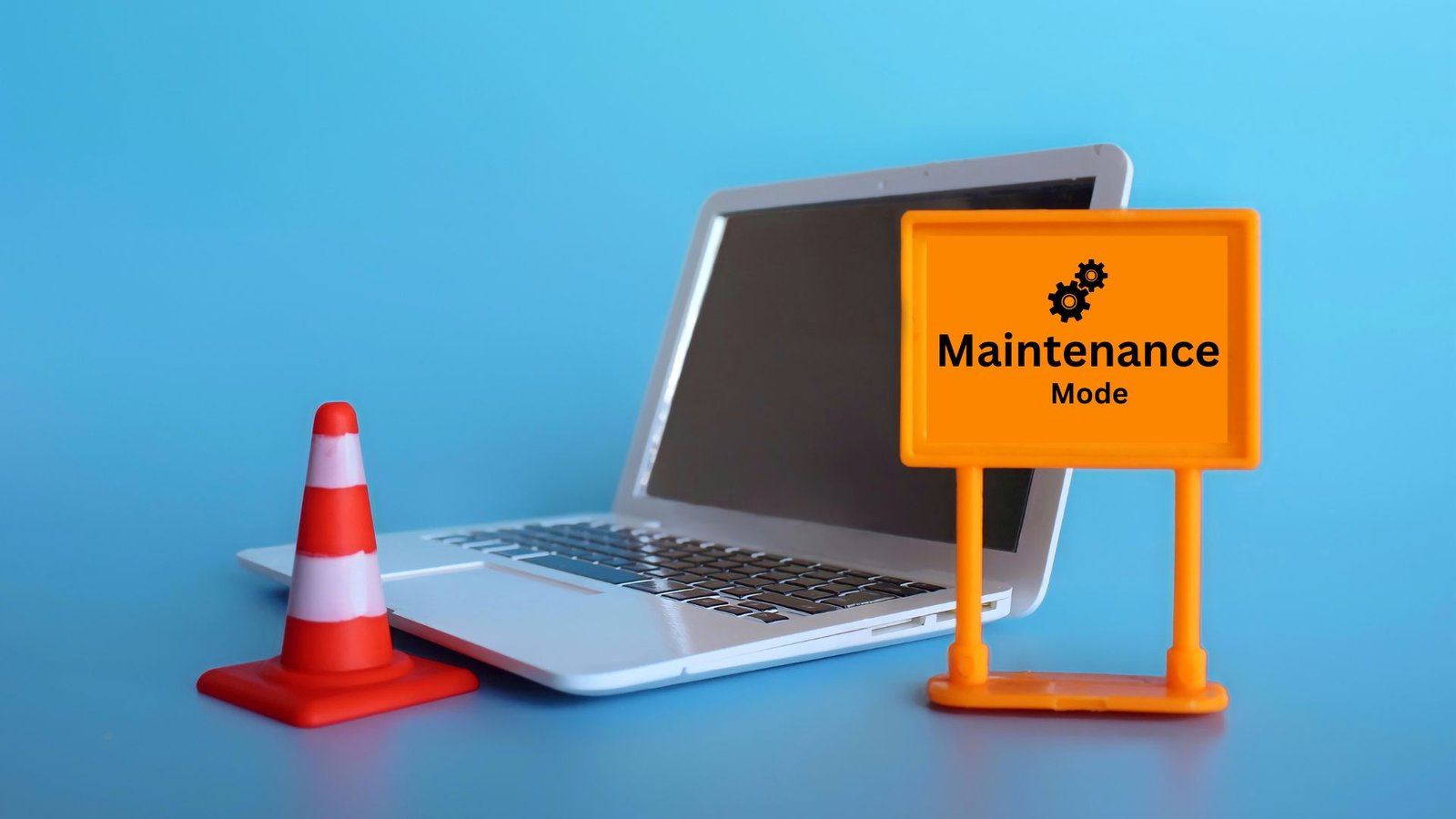
Maintaining a WordPress website involves regular updates, plugin installations, and sometimes major overhauls. However, performing these tasks while your site is live can lead to disruptions for your visitors. WordPress Maintenance Mode comes to the rescue, allowing you to gracefully inform visitors that your site is undergoing maintenance. In this guide, we’ll walk through the process of enabling and customizing WordPress Maintenance Mode to ensure a seamless experience for both you and your site’s visitors.
What is WordPress Maintenance Mode?
WordPress Maintenance Mode is a feature that allows you to display a temporary page to visitors while you perform updates or maintenance tasks on your site. It ensures that visitors are aware of the ongoing maintenance and reduces the risk of confusion or frustration.
Enabling WordPress Maintenance Mode
Enabling Maintenance Mode in WordPress is a simple process:
- Choose a Maintenance Mode Plugin: While WordPress has a default Maintenance Mode feature, using a plugin provides more customization options. Some popular plugins include “WP Maintenance Mode” and “Coming Soon Page & Maintenance “
- Install and Activate the Chosen Plugin: Install the selected Maintenance Mode plugin from the WordPress plugin repository and activate it on your site.
- Configure Maintenance Mode Settings: Navigate to the settings page of the plugin to configure the Maintenance Mode settings. Here, you can customize the message displayed to visitors, set a countdown timer, and specify which user roles can bypass Maintenance Mode.
- Enable Maintenance Mode: Once you’ve configured the settings to your liking, enable Maintenance Mode to activate the temporary page. Visitors will now see the Maintenance Mode page when accessing your site.
Customizing Your Maintenance Mode Page
Customizing the Maintenance Mode page allows you to maintain your site’s branding and provide relevant information to visitors. Here are some customization options:
- Message: Craft a clear and concise message informing visitors about the reason for maintenance and when they can expect the site to be back online.
- Countdown Timer: Adding a countdown timer can create anticipation and let visitors know exactly when your site will be accessible again.
- Background Image or Color: Customize the background of the Maintenance Mode page to match your site’s branding or convey a specific message.
- Contact Information: Provide contact details or links to your social media profiles so visitors can reach out for assistance or updates.
Advanced Customization Options
For those looking to further personalize their Maintenance Mode page, consider these advanced customization options:
- Custom HTML/CSS: Some Maintenance Mode plugins allow you to add custom HTML/CSS code to tailor the appearance of the page to your liking.
- Custom Templates: Certain plugins offer pre-designed templates or the ability to create custom templates for the Maintenance Mode page.
Conclusion:
WordPress Maintenance Mode is a valuable feature that allows you to perform updates and maintenance tasks on your site without disrupting the user experience. By enabling and customizing Maintenance Mode, you can ensure that visitors are informed about the temporary downtime and maintain a professional image for your site. Whether you’re performing routine updates or making significant changes, WordPress Maintenance Mode is an essential tool for managing your site’s maintenance effectively.
Contact us to get more information about it.
Search blogs
Other Blogs
Fixing Stripe API Errors in Forminator: How the Forminator Stripe App Solves Connection Issues
If your Stripe payments are failing or Forminator is showing API connection errors, the issue is usually caused by missing or invalid Stripe permissions. This happens when Stripe API keys are not properly linked or have been restricted by Stripe for security reasons....
How to Fully Secure Your WordPress Website Using Defender Pro
Securing a WordPress website requires more than just installing a security plugin—it depends on configuring the right features correctly. Defender Pro provides a comprehensive set of tools designed to protect your site from hackers, malware, and unauthorized access when used effectively.
How To Fix The Missing Divi Library Layouts Issue
Missing Divi Library layouts are often caused by permalink or rewrite rule conflicts, especially after site migrations, updates, plugin changes, or hosting switches. In most cases, the issue can be fixed quickly by simply re-saving your WordPress permalinks. This forces WordPress to regenerate its rewrite rules, which Divi relies on to load saved layouts correctly. Once refreshed, the Divi Library items usually reappear instantly in the Divi Builder without any data loss or configuration changes.
How to Fix WordPress Not Sending Emails Problem
One of the most frustrating issues for WordPress users is when the website suddenly stops sending emails. Whether it’s contact form messages, password reset links, or WooCommerce order notifications — these emails are essential for smooth communication and user trust....
10 Common WordPress Issues and How to Fix Them
WordPress is a powerful and flexible platform, but it can occasionally present technical challenges that disrupt your website’s performance or functionality. From plugin conflicts and slow loading speeds to security issues, broken links, and failed updates, these problems are common for many site owners. This guide highlights the most frequent WordPress issues and provides practical, easy-to-follow solutions to resolve them quickly. Whether you’re troubleshooting errors, improving performance, or strengthening security, understanding these fixes can help keep your WordPress site running smoothly and reliably.