
How to Resolve Issues with Divi on Mobile Devices
Category: Web Design | Web Development
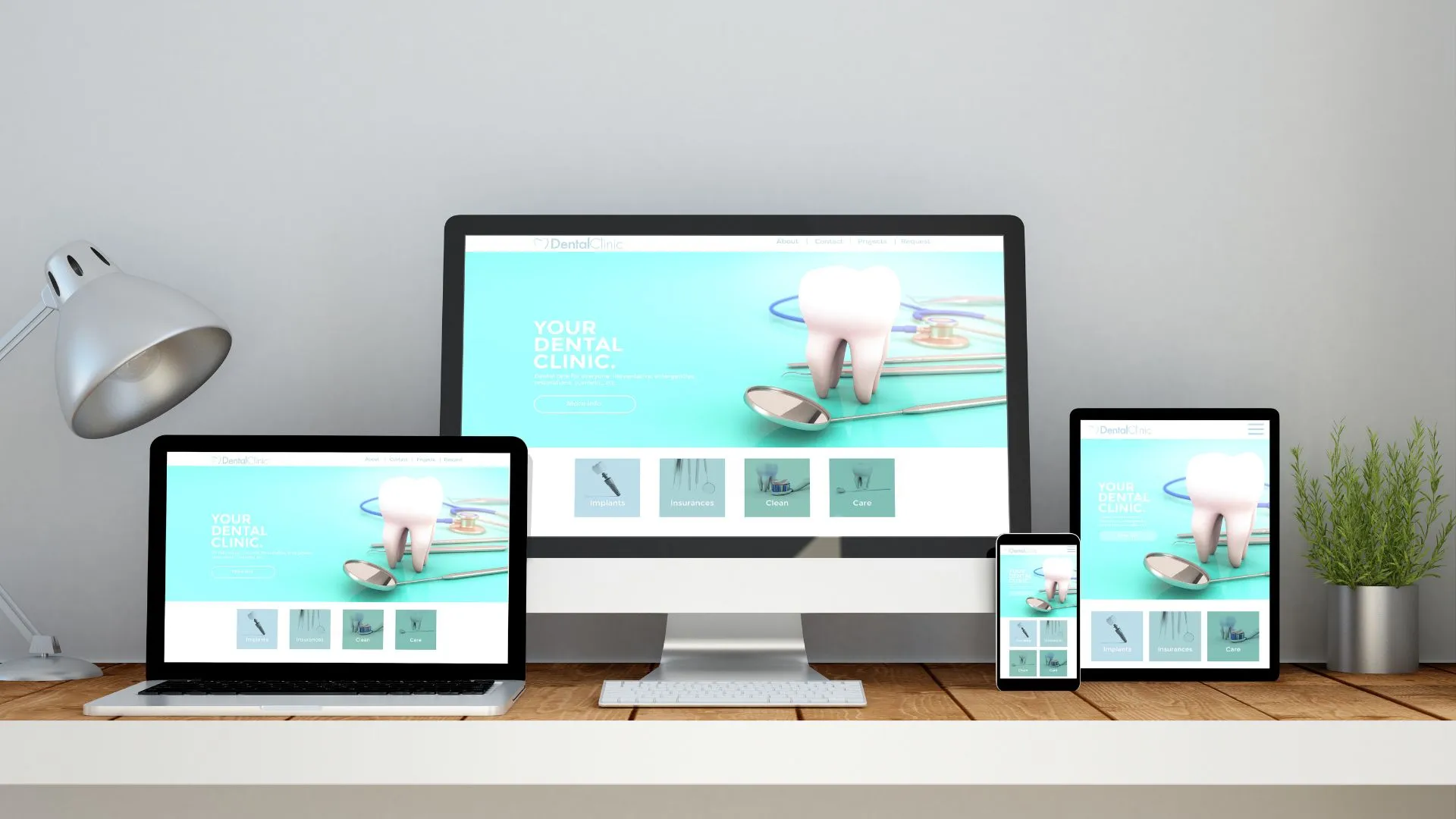
Common Mobile Issues in Divi
- Unresponsive Layouts
Sometimes, your Divi layout looks perfect on desktop but appears broken or distorted on mobile devices. - Text or Button Overlap
Oversized text or buttons may overlap, making your design look cluttered. - Slow Loading Speeds
Large images and excessive animations can cause mobile pages to load slowly. - Navigation Menu Problems
Mobile menus might not work properly or could appear off-screen. - Alignment and Spacing Issues
Uneven spacing or misaligned elements can ruin the visual appeal of your mobile design.
Solutions to Divi Mobile Issues
- Check and Adjust Divi’s Mobile Settings
Divi provides built-in responsive design controls. Use these tools to customize your layout for mobile:- Go to the Divi Builder and click on the gear icon of any module.
- Use the responsive tabs (desktop, tablet, and phone icons) to adjust settings for each device type.
- Modify font sizes, margins, paddings, and element alignment specifically for mobile devices.
- Use Custom Breakpoints
Divi’s default breakpoints may not always meet your needs. Add custom breakpoints in your CSS to optimize your design for specific screen sizes:
@media only screen and (max-width: 480px) {
.custom-class {
font-size: 14px;
padding: 10px;
}
}
Add this CSS code in Divi > Theme Options > Custom CSS or in the Divi Builder Page Settings. - Optimize Images for Mobile
Large images can slow down your website on mobile devices. Use these techniques to optimize images:- Use Divi’s built-in image settings to upload smaller versions of images for mobile.
- Enable lazy loading to delay loading images until they are visible on the screen.
- Fix Navigation Menu Issues
If your mobile menu is not functioning as expected, check these settings:- Go to Divi > Theme Customizer > Header & Navigation > Menu Settings and adjust mobile menu styles.
- Use custom CSS to fix menu alignment issues:
.et_mobile_menu {
text-align: center;
} - Test your mobile menu to ensure that dropdowns and links are working.
- Use Divi’s Visibility Settings
If certain elements look problematic on mobile, you can hide them:- In the Divi Builder, click on the gear icon for the section or module.
- Go to the Advanced > Visibility tab and disable the element for mobile devices.
- Create a mobile-specific version of the element and customize it separately.
- Test and Debug
Through testing is crucial to ensure a seamless mobile experience:- Use browser developer tools (F12 or right-click > Inspect) to simulate mobile devices.
- Test your website on actual devices for real-world performance.
- Use tools like Google’s Mobile-Friendly Test to identify issues.
Best Practices for Mobile Optimization in Divi
- Stick to Simplicity: Avoid overloading your pages with unnecessary elements.
- Prioritize Performance: Use caching plugins like WP Rocket to improve loading speeds.
- Monitor Updates: Keep Divi, WordPress, and all plugins updated to avoid compatibility issues.
- Use Analytics: Monitor user behavior on mobile devices to identify areas for improvement.
Conclusion:
Alt text is a small detail with a big impact. It bridges gaps for users with disabilities and amplifies your content’s reach through improved SEO. By following best practices and avoiding common pitfalls, you can make your website a shining example of accessibility and optimization. Start today—because every image deserves a voice. Contact us to get more information about it.Search blogs
Other Blogs

Fixing Stripe API Errors in Forminator: How the Forminator Stripe App Solves Connection Issues
If your Stripe payments are failing or Forminator is showing API connection errors, the issue is usually caused by missing or invalid Stripe permissions. This happens when Stripe API keys are not properly linked or have been restricted by Stripe for security reasons....
How to Fully Secure Your WordPress Website Using Defender Pro
Securing a WordPress website requires more than just installing a security plugin—it depends on configuring the right features correctly. Defender Pro provides a comprehensive set of tools designed to protect your site from hackers, malware, and unauthorized access when used effectively.
How To Fix The Missing Divi Library Layouts Issue
Missing Divi Library layouts are often caused by permalink or rewrite rule conflicts, especially after site migrations, updates, plugin changes, or hosting switches. In most cases, the issue can be fixed quickly by simply re-saving your WordPress permalinks. This forces WordPress to regenerate its rewrite rules, which Divi relies on to load saved layouts correctly. Once refreshed, the Divi Library items usually reappear instantly in the Divi Builder without any data loss or configuration changes.
How to Fix WordPress Not Sending Emails Problem
One of the most frustrating issues for WordPress users is when the website suddenly stops sending emails. Whether it’s contact form messages, password reset links, or WooCommerce order notifications — these emails are essential for smooth communication and user trust....
10 Common WordPress Issues and How to Fix Them
WordPress is a powerful and flexible platform, but it can occasionally present technical challenges that disrupt your website’s performance or functionality. From plugin conflicts and slow loading speeds to security issues, broken links, and failed updates, these problems are common for many site owners. This guide highlights the most frequent WordPress issues and provides practical, easy-to-follow solutions to resolve them quickly. Whether you’re troubleshooting errors, improving performance, or strengthening security, understanding these fixes can help keep your WordPress site running smoothly and reliably.