
Easy Steps to Install WordPress: A Beginner’s Guide
Category: Web Development | Wordpress
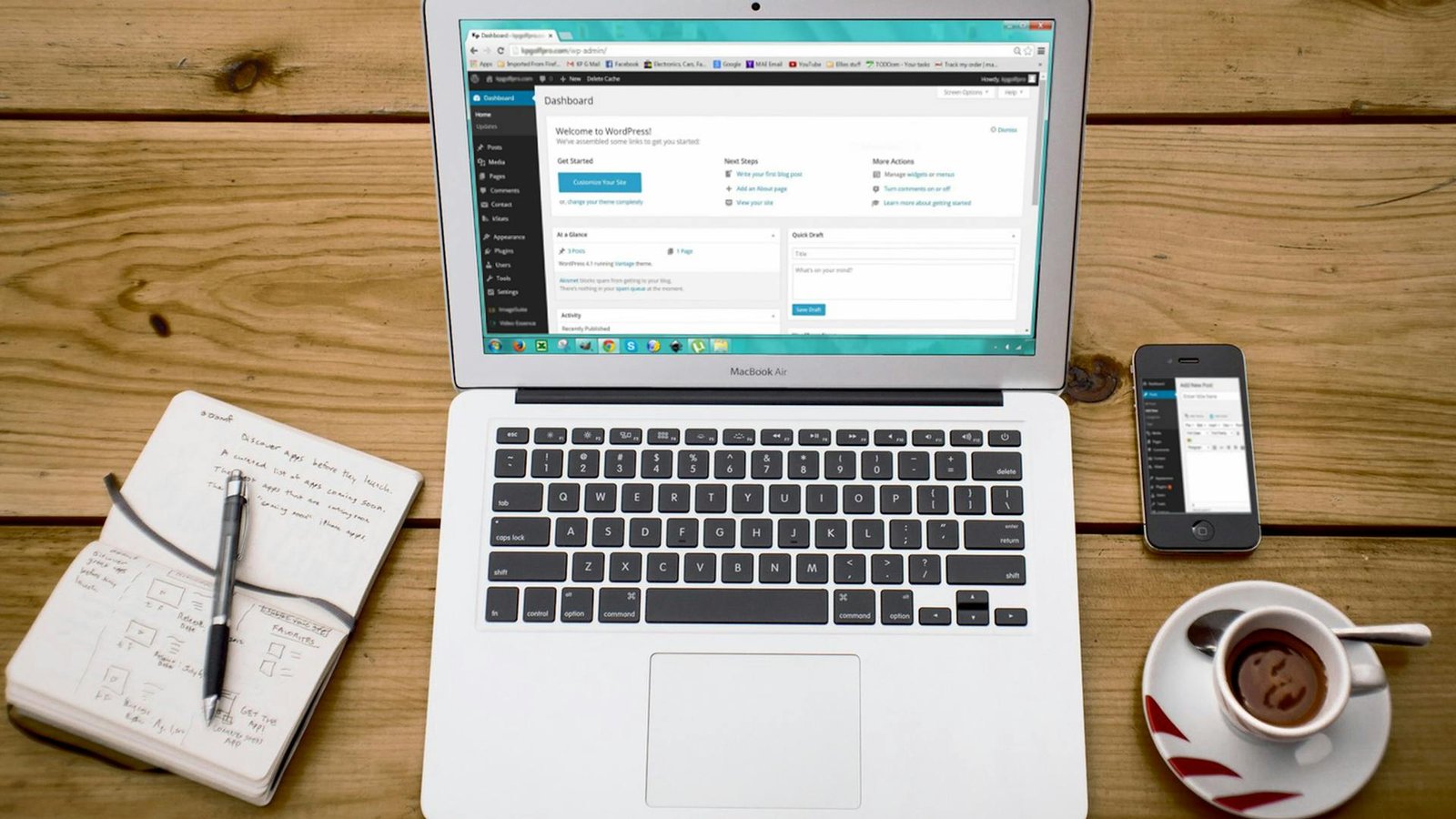
Installing WordPress is a relatively straightforward process, and it can be done in a few simple steps. Here’s a general guide to help you install WordPress:
Prerequisites:
1. Domain Name and Web Hosting
- Make sure you have a domain name registered (e.g., yourwebsite.com).
- Choose a web hosting provider. Popular choices include Bluehost, SiteGround, GoDaddy, and HostGator.
2.Web Hosting Account Credentials
- Obtain the necessary login credentials for your web hosting account.
Step-by-Step Installation
1. Access Your Web Hosting Control Panel:
- Log in to your web hosting account.
- Locate the control panel (cPanel is commonly used).
2. Find the “Auto Installers” or “Script Installers” Section
- Look for an option like “Softaculous,” “Fantastico,” or “QuickInstall.”
3. Select WordPress:
- Look for an option like “Softaculous,” “Fantastico,” or “QuickInstall.”
4. Configure WordPress Installation:
- Click on the “Install” button
- Fill out the required information
- Choose the protocol (usually ‘http’ or ‘https’).
- Choose the domain where you want to install WordPress.
- Enter the directory (leave it blank if you want to install in the root directory).
5. Set up Site Information:
- Enter a title for your site.
- Create an admin username and password (remember these for logging into WordPress later).
- Enter your admin email address.
6. Access Your Web Hosting Control Panel:
- Some installers allow you to select plugins during installation. You can skip this step if you want
7. Install WordPress:
- Click the “Install” button to start the installation process.
8. Completion:
- Once the installation is complete, you’ll receive a confirmation message with your site URL and login details.
9. Access WordPress Admin:
- Visit your WordPress admin dashboard by going to http://yourwebsite.com/wp-admin/ and log in with the admin credentials you set during installation.
Manual Installation
If your hosting provider doesn’t have an auto-installer, you can also install WordPress manually by downloading the latest version from the official WordPress website (https://wordpress.org/download/) and following their installation guide.
Keep in mind that specific steps may vary depending on your hosting provider, so it’s a good idea to refer to their documentation or support if you encounter any issues.
Search blogs
Other Blogs
Fixing Stripe API Errors in Forminator: How the Forminator Stripe App Solves Connection Issues
If your Stripe payments are failing or Forminator is showing API connection errors, the issue is usually caused by missing or invalid Stripe permissions. This happens when Stripe API keys are not properly linked or have been restricted by Stripe for security reasons....
How to Fully Secure Your WordPress Website Using Defender Pro
Securing a WordPress website requires more than just installing a security plugin—it depends on configuring the right features correctly. Defender Pro provides a comprehensive set of tools designed to protect your site from hackers, malware, and unauthorized access when used effectively.
How To Fix The Missing Divi Library Layouts Issue
Missing Divi Library layouts are often caused by permalink or rewrite rule conflicts, especially after site migrations, updates, plugin changes, or hosting switches. In most cases, the issue can be fixed quickly by simply re-saving your WordPress permalinks. This forces WordPress to regenerate its rewrite rules, which Divi relies on to load saved layouts correctly. Once refreshed, the Divi Library items usually reappear instantly in the Divi Builder without any data loss or configuration changes.
How to Fix WordPress Not Sending Emails Problem
One of the most frustrating issues for WordPress users is when the website suddenly stops sending emails. Whether it’s contact form messages, password reset links, or WooCommerce order notifications — these emails are essential for smooth communication and user trust....
10 Common WordPress Issues and How to Fix Them
WordPress is a powerful and flexible platform, but it can occasionally present technical challenges that disrupt your website’s performance or functionality. From plugin conflicts and slow loading speeds to security issues, broken links, and failed updates, these problems are common for many site owners. This guide highlights the most frequent WordPress issues and provides practical, easy-to-follow solutions to resolve them quickly. Whether you’re troubleshooting errors, improving performance, or strengthening security, understanding these fixes can help keep your WordPress site running smoothly and reliably.