
Divi Builder Not Loading? Here’s How to Resolve It.
Category: Wordpress
1. Clear Your Browser and Divi Cache
One of the most common causes of Divi Builder loading issues is a cached version of your website conflicting with new updates or content. Outdated or corrupted cache files can significantly hinder Divi’s functionality.
Steps to Clear Cache:
- In Chrome: Go to Settings > Privacy and Security > Clear Browsing Data.
- In Firefox: Go to Settings > Privacy & Security > Cookies and Site Data > Clear Data.
- Clear Divi’s cache by going to Divi Theme Options > Builder > Advanced and clicking the Clear button under Static CSS File Generation.
- If your hosting provider offers caching services, ensure you clear that as well.
2. Increase PHP Memory Limit
Insufficient PHP memory can cause Divi Builder to stall during its loading process. Divi requires ample memory resources to function efficiently.
Steps to Increase PHP Memory Limit:
- Add the following code to your wp-config.php file:
define(‘WP_MEMORY_LIMIT’, ‘256M’);
define(‘WP_MAX_MEMORY_LIMIT’, ‘512M’); - If this adjustment doesn’t solve the issue, contact your hosting provider for additional memory allocation.
3. Ensure Divi and WordPress Are Updated
Outdated versions of Divi or WordPress are also common causes of loading issues. Running older versions may result in compatibility conflicts that can disrupt the Builder.
Steps to Update Divi and WordPress:
- Go to Dashboard > Updates and update both WordPress and Divi to the latest versions.
- Always create a complete backup before updating to prevent data loss.
4. Check for Plugin Conflicts
Plugins can also conflict with Divi Builder, especially if they inject custom scripts or modify the page editor.
Steps to Identify Plugin Conflicts:
- Deactivate all plugins.
- Reactivate them one by one to identify the problematic one.
- Once identified, consider replacing the plugin or contacting its developer for support.
5. Activate Safe Mode
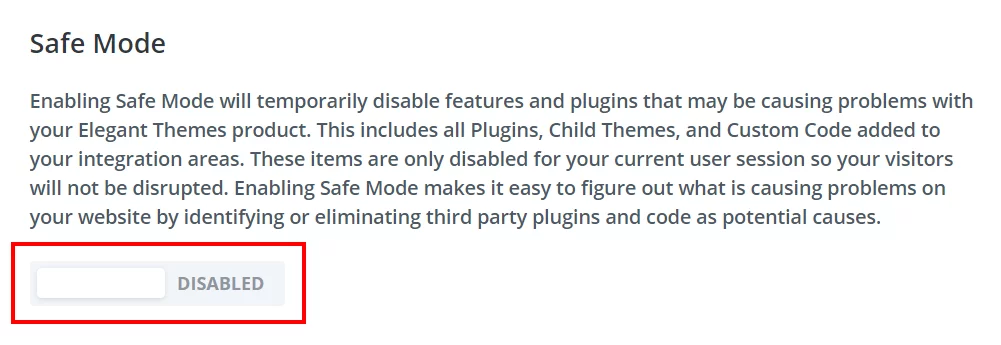
Divi’s Safe Mode is a useful diagnostic tool that temporarily disables third-party plugins and custom code. Activating Safe Mode can help determine if compatibility issues are causing the Builder to malfunction.
Steps to Enable Safe Mode:
- Go to Divi Theme Options > Support Center.
- Toggle Safe Mode ON.
- If the Builder loads successfully, a conflicting plugin or custom code is likely the cause.
6. Adjust PHP Settings
Sometimes, restrictive PHP settings prevent Divi Builder from functioning correctly. Increasing PHP limits can resolve this.
Recommended PHP Settings:
- Add these lines to your php.ini file or ask your hosting provider to adjust the settings.
max_execution_time = 300
memory_limit = 256M
post_max_size = 64M
upload_max_filesize = 64M
7. Resolve JavaScript Errors
JavaScript errors can also prevent Divi Builder from loading. These errors often result from custom scripts or plugin conflicts.
Steps to Identify and Resolve JavaScript Errors:
- Use Google Chrome DevTools (press F12) to inspect your site for errors.
- If errors are found, review your custom JavaScript or consult a developer for assistance.
8. Improve Server Performance
Slow server performance can also be the cause. Divi Builder requires stable server resources to function properly.
Steps to Improve Server Performance:
- Upgrade to a more powerful hosting plan if your server is overloaded.
- Consider hosting providers optimized for Divi, like SiteGround, Flywheel, or Kinsta.
- Use tools like GTmetrix or Pingdom to identify performance bottlenecks.
9. Refresh Permalink Settings
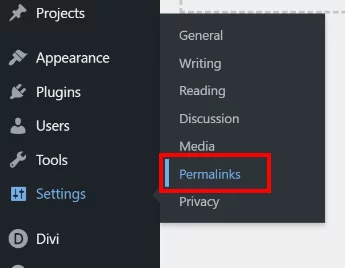
Incorrect permalink settings can also interfere with Divi Builder.
Steps to Refresh Permalink Settings:
- Go to Settings > Permalinks.
- Select Post Name and click Save Changes.
10. Reset Divi Settings
Restoring Divi to its default settings can eliminate persistent problems.
Steps to Reset Divi Settings:
- Go to Divi Theme Options.
- Click the Reset Options button under the General tab.
11. Check Your Internet Connection
Unstable internet connections are sometimes overlooked but can also play a role in Divi Builder failing to load.
Steps to Improve Connection Stability:
- Restart your modem and router.
- Switch to a faster network if possible.
- Use Speedtest.net to measure your connection quality.
12. Temporarily Disable Your CDN
Content Delivery Networks (CDNs) may conflict with Divi’s scripts, causing the Builder to fail.
Steps to Troubleshoot CDN Issues:
- If you use a CDN like Cloudflare, temporarily disable it.
- Clear your CDN’s cache and re-enable it afterward to see if the issue persists.
13. Correct File Permissions
Incorrect file permissions in your WordPress installation can also prevent Divi Builder from loading.
Steps to Correct File Permissions:
- Use an FTP client like FileZilla.
- Set folder permissions to 755 and file permissions to 644.
14. Disable Performance-Heavy Features
Some advanced Divi features can be resource-intensive and may cause performance issues on slower servers.
Steps to Disable Performance Features:
- Go to Divi Theme Options > Builder.
- Disable features like Dynamic CSS or Performance Enhancements.
15. Contact Divi Support
If none of these solutions work, reaching out to Divi’s expert support team can provide valuable assistance.
Steps to Contact Divi Support:
- Go to Divi Theme Options > Support Center.
- Submit a support ticket with detailed information about your setup, recent changes, and troubleshooting steps you’ve attempted.
Conclusion:
By following these comprehensive steps, you should be able to resolve Divi Builder loading issues effectively. Regular updates, caching management, and performance optimization are key to keeping Divi running smoothly. If issues persist, consider reaching out to Divi Support for further assistance. Additionally, our team at Ecroninc is available to provide expert support and guidance for all your Divi-related concerns. Investing in quality hosting and implementing best practices will ensure your Divi experience remains seamless and efficient.
Search blogs
Other Blogs
Fixing Stripe API Errors in Forminator: How the Forminator Stripe App Solves Connection Issues
If your Stripe payments are failing or Forminator is showing API connection errors, the issue is usually caused by missing or invalid Stripe permissions. This happens when Stripe API keys are not properly linked or have been restricted by Stripe for security reasons....
How to Fully Secure Your WordPress Website Using Defender Pro
Securing a WordPress website requires more than just installing a security plugin—it depends on configuring the right features correctly. Defender Pro provides a comprehensive set of tools designed to protect your site from hackers, malware, and unauthorized access when used effectively.
How To Fix The Missing Divi Library Layouts Issue
Missing Divi Library layouts are often caused by permalink or rewrite rule conflicts, especially after site migrations, updates, plugin changes, or hosting switches. In most cases, the issue can be fixed quickly by simply re-saving your WordPress permalinks. This forces WordPress to regenerate its rewrite rules, which Divi relies on to load saved layouts correctly. Once refreshed, the Divi Library items usually reappear instantly in the Divi Builder without any data loss or configuration changes.
How to Fix WordPress Not Sending Emails Problem
One of the most frustrating issues for WordPress users is when the website suddenly stops sending emails. Whether it’s contact form messages, password reset links, or WooCommerce order notifications — these emails are essential for smooth communication and user trust....
10 Common WordPress Issues and How to Fix Them
WordPress is a powerful and flexible platform, but it can occasionally present technical challenges that disrupt your website’s performance or functionality. From plugin conflicts and slow loading speeds to security issues, broken links, and failed updates, these problems are common for many site owners. This guide highlights the most frequent WordPress issues and provides practical, easy-to-follow solutions to resolve them quickly. Whether you’re troubleshooting errors, improving performance, or strengthening security, understanding these fixes can help keep your WordPress site running smoothly and reliably.