

Step 1: Installing WooCommerce
1. Install WordPress
Before you can use WooCommerce, you’ll need a WordPress site. Ensure your WordPress installation is up-to-date.
2. Install WooCommerce
Go to your WordPress dashboard.
Navigate to Plugins > Add New.
Search for “WooCommerce.”
Click “Install Now” and then “Activate.”
Step 2: WooCommerce Initial Setup
1. Configuration Wizard
Upon activation, WooCommerce will launch its configuration wizard to help you set up the basics:
- Store Details: Enter your store’s location, currency, and preferred units for product dimensions and weight.
- Payment Methods: Choose the payment gateways you want to offer (e.g., PayPal, Stripe, bank transfer).
- Shipping: Define your shipping zones, rates, and methods.
- Recommended Extras: Install additional plugins for improved functionality, like WooCommerce Services for automated tax calculations.
Step 3: Adding Products
1. Add Your First Product
- Navigate to Products > Add New.
- Enter the product name, description, and set the product type (simple, grouped, external/affiliate, variable).
- Set the price and sale price if applicable.
- Add product images and a product gallery to showcase your items.
- Fill in product categories, tags, and attributes to improve product organization and searchability.
2. Product Data
- Inventory: Manage stock levels and set up backorders if needed.
- Shipping: Enter product dimensions and weight.
- Linked Products: Cross-sell and up-sell related products to boost sales.
Step 4: Customizing Your Store
1. Choose a WooCommerce-Compatible Theme
Select a theme optimized for WooCommerce to ensure a seamless shopping experience. Popular options include Divi, Elementor, Astra, and Flatsome.
2. Customize Your Theme
- Use the WordPress Customizer (Appearance > Customize) to adjust your site’s appearance.
- Customize headers, footers, and widgets to reflect your brand identity.
3. Essential Plugins
Enhance your store’s functionality with these must-have plugins:
- Yoast SEO: Improve your store’s search engine visibility with Yoast SEO.
- Jetpack: Jetpack Enhance security, performance, and site management.
- WooCommerce Payments: WooCommerce Payments Simplify the payment process for your customers.
- WooCommerce Subscriptions: WooCommerce Subscriptions Offer subscription-based products and services.
Step 5: Optimizing for Performance and SEO
1. Speed and Performance
- Choose a reliable hosting provider that offers excellent performance.
- Use a Content Delivery Network (CDN) to deliver content quickly to global visitors.
- Optimize images with plugins like Smush or EWWW Image Optimizer.
2. Search Engine Optimization
- Use SEO-friendly URLs and include keywords in product titles and descriptions.
- Create unique and engaging product descriptions to attract and retain customers.
- Implement an internal linking strategy to improve navigation and SEO.
Conclusion:
Setting up an online store with WooCommerce is a straightforward process that empowers you to create a fully functional eCommerce website. By following these essential steps and tips, you can establish a robust online presence, attract customers, and drive sales. Remember, the key to a successful online store lies in continuous improvement, excellent customer service, and strategic marketing efforts. Happy selling! Contact us to get more information about it.Search blogs
Other Blogs
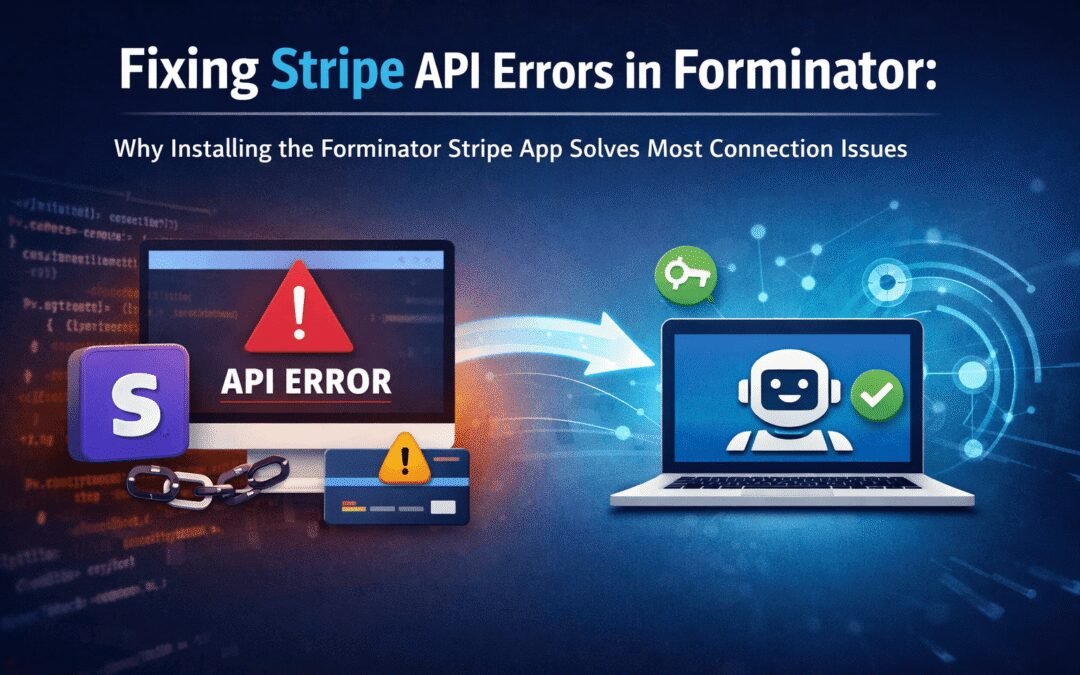
Fixing Stripe API Errors in Forminator: How the Forminator Stripe App Solves Connection Issues
If your Stripe payments are failing or Forminator is showing API connection errors, the issue is usually caused by missing or invalid Stripe permissions. This happens when Stripe API keys are not properly linked or have been restricted by Stripe for security reasons....
How to Fully Secure Your WordPress Website Using Defender Pro
Securing a WordPress website requires more than just installing a security plugin—it depends on configuring the right features correctly. Defender Pro provides a comprehensive set of tools designed to protect your site from hackers, malware, and unauthorized access when used effectively.
How To Fix The Missing Divi Library Layouts Issue
Missing Divi Library layouts are often caused by permalink or rewrite rule conflicts, especially after site migrations, updates, plugin changes, or hosting switches. In most cases, the issue can be fixed quickly by simply re-saving your WordPress permalinks. This forces WordPress to regenerate its rewrite rules, which Divi relies on to load saved layouts correctly. Once refreshed, the Divi Library items usually reappear instantly in the Divi Builder without any data loss or configuration changes.
How to Fix WordPress Not Sending Emails Problem
One of the most frustrating issues for WordPress users is when the website suddenly stops sending emails. Whether it’s contact form messages, password reset links, or WooCommerce order notifications — these emails are essential for smooth communication and user trust....
10 Common WordPress Issues and How to Fix Them
WordPress is a powerful and flexible platform, but it can occasionally present technical challenges that disrupt your website’s performance or functionality. From plugin conflicts and slow loading speeds to security issues, broken links, and failed updates, these problems are common for many site owners. This guide highlights the most frequent WordPress issues and provides practical, easy-to-follow solutions to resolve them quickly. Whether you’re troubleshooting errors, improving performance, or strengthening security, understanding these fixes can help keep your WordPress site running smoothly and reliably.